
What it does
- A candidate applies on your Jobylon ad.
- A couple of minutes later they are in Artemis, with their CV, cover letter and form answers, already assessed against the role.
- You grade them in Artemis with a thumbs up or a thumbs down, and send them a yes or a no from Artemis as you go.
- Jobylon follows: the applicant moves to the stage you chose for that grade.
The integration also:
- imports your published Jobylon jobs as roles in Artemis;
- adds candidates Artemis finds for you to a Jobylon job as sourced candidates, and Jobylon sends them no "thanks for applying" email;
- marks a role Closing in Artemis when you archive its job in Jobylon.
Connect Jobylon to Artemis
1. Ask Jobylon for your feed URL and Push API credentials
Write to apis@jobylon.com and ask them to connect your company to Artemis. You get two things back:
- A job feed URL: Artemis reads your published jobs and your pipeline stages from it. Treat it like a password, since anyone holding it can read your jobs.
- Push API credentials, an App Id and an App Key: Artemis needs them to move applicants on your Jobylon board and to add candidates to your jobs.
2. Send each job's applicants to Artemis
In Jobylon, open the job and click the gear in its toolbar, Pipeline Actions.

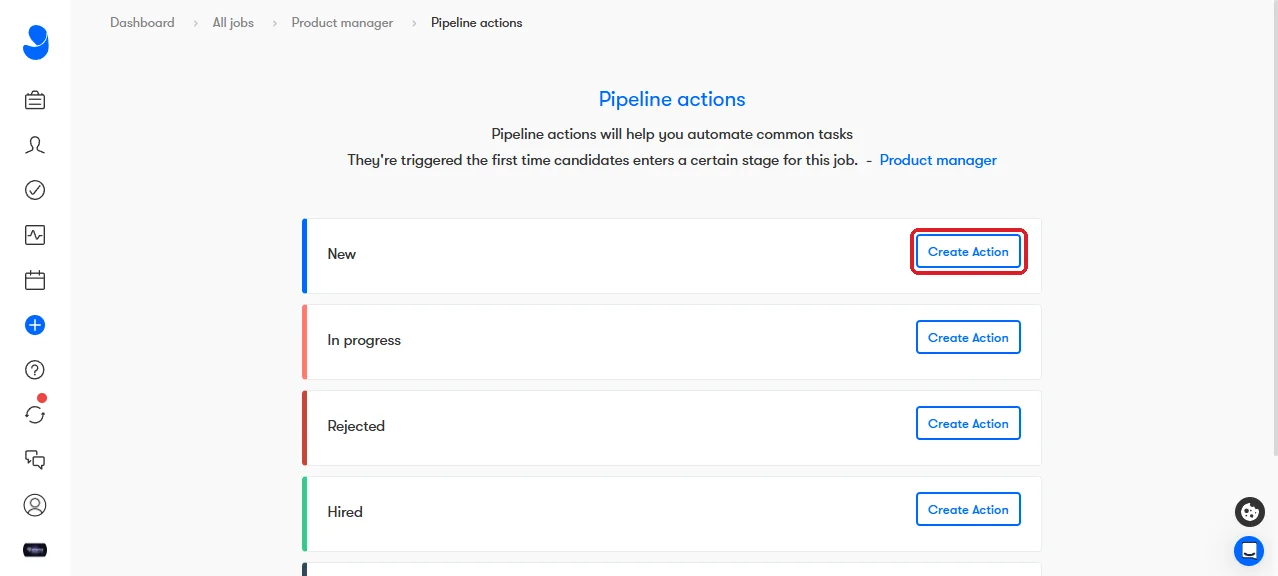
On the New stage, click Create Action. If the row already says 1 Actions, the job is set up and you can go on to step 3.
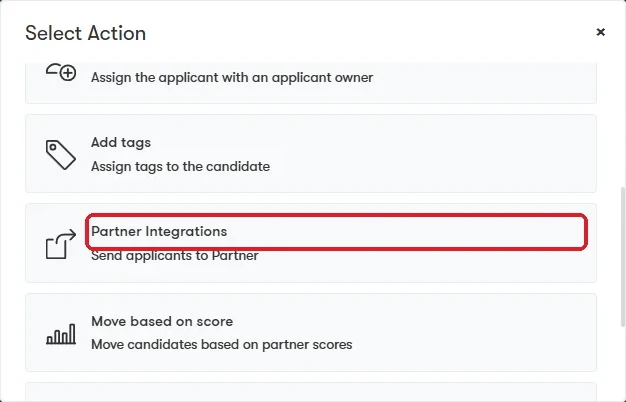
Choose Partner Integrations – Send applicants to Partner.
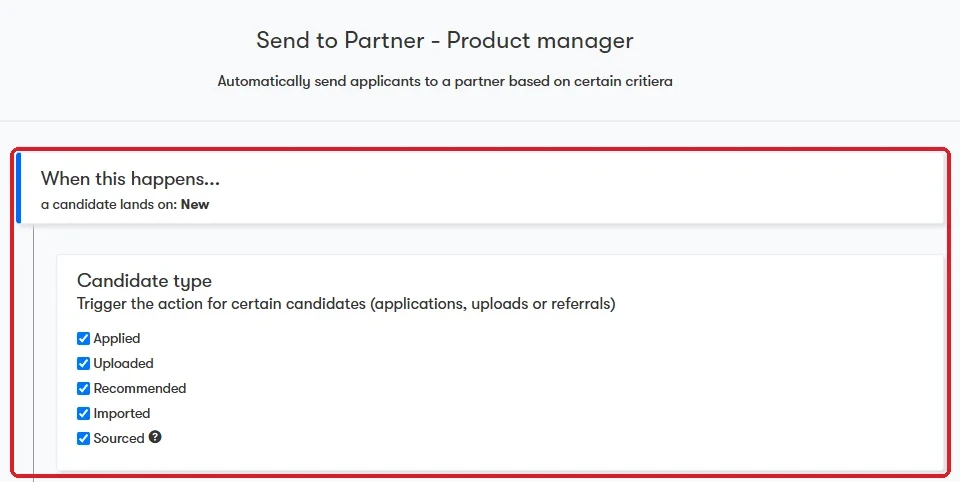
Leave the trigger as it is: a candidate lands on New, with every candidate type ticked.
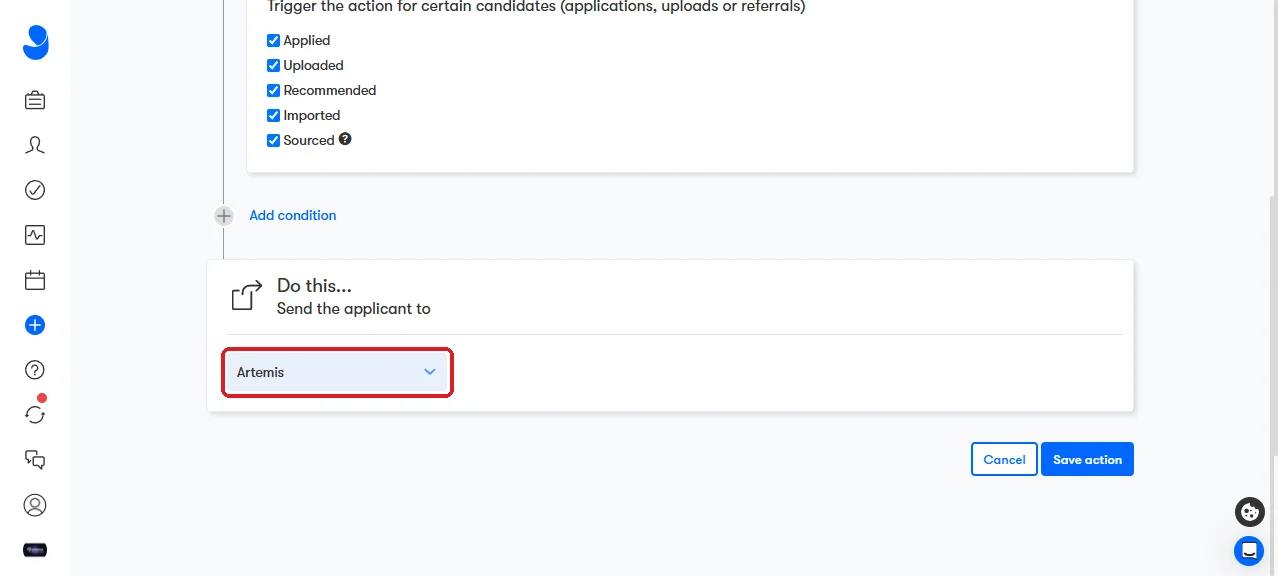
Scroll down, choose Artemis under Send the applicant to, and click Save action.
The New row now says 1 Actions.
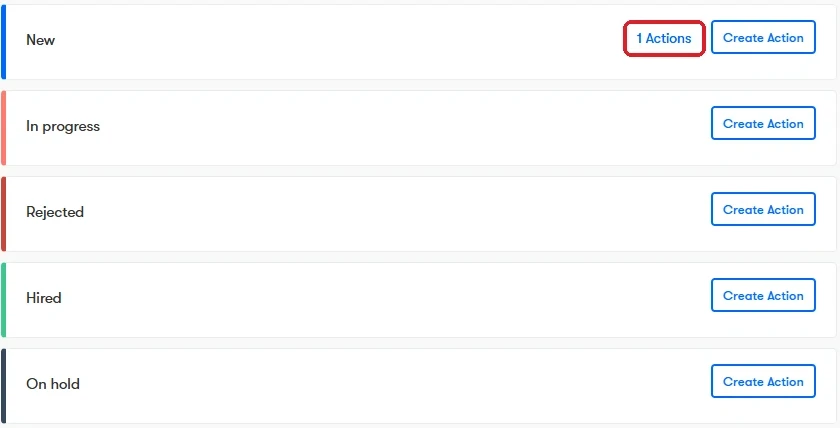
This action is what brings the CV, cover letter and form answers to Artemis. Put it on your job templates too: a job cloned from one that has it keeps it.
3. Paste the details in Artemis
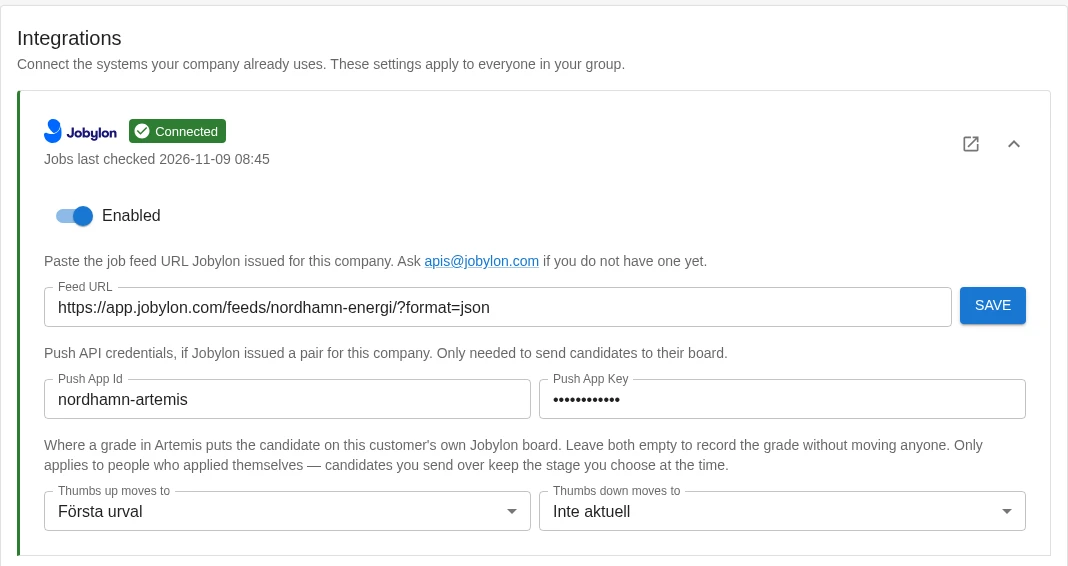
In Artemis, go to Settings, then Integrations, and open the Jobylon card. Paste the Feed URL, the Push App Id and the Push App Key, and press Save. Artemis checks the feed with Jobylon and tells you how many published jobs it found.
The card then lists the stages of your own Jobylon pipeline. Choose:
- Thumbs up moves to: the stage an applicant moves to when you give a thumbs up.
- Thumbs down moves to: the stage an applicant moves to when you give a thumbs down.
Pick Do not move for either one to record the grade in Artemis and leave the applicant where they are in Jobylon. Press Save again.
Use it
Import a job as a role
Add a new role in Artemis and choose A published Jobylon job. The list shows your published jobs that are not yet a role. Title, company, locations and language come from the Jobylon ad, and Artemis picks out the requirements for you to check. Anyone who has already applied is placed on the role, and the role carries a Jobylon mark that opens the job's board in Jobylon.

Grade applicants in Artemis
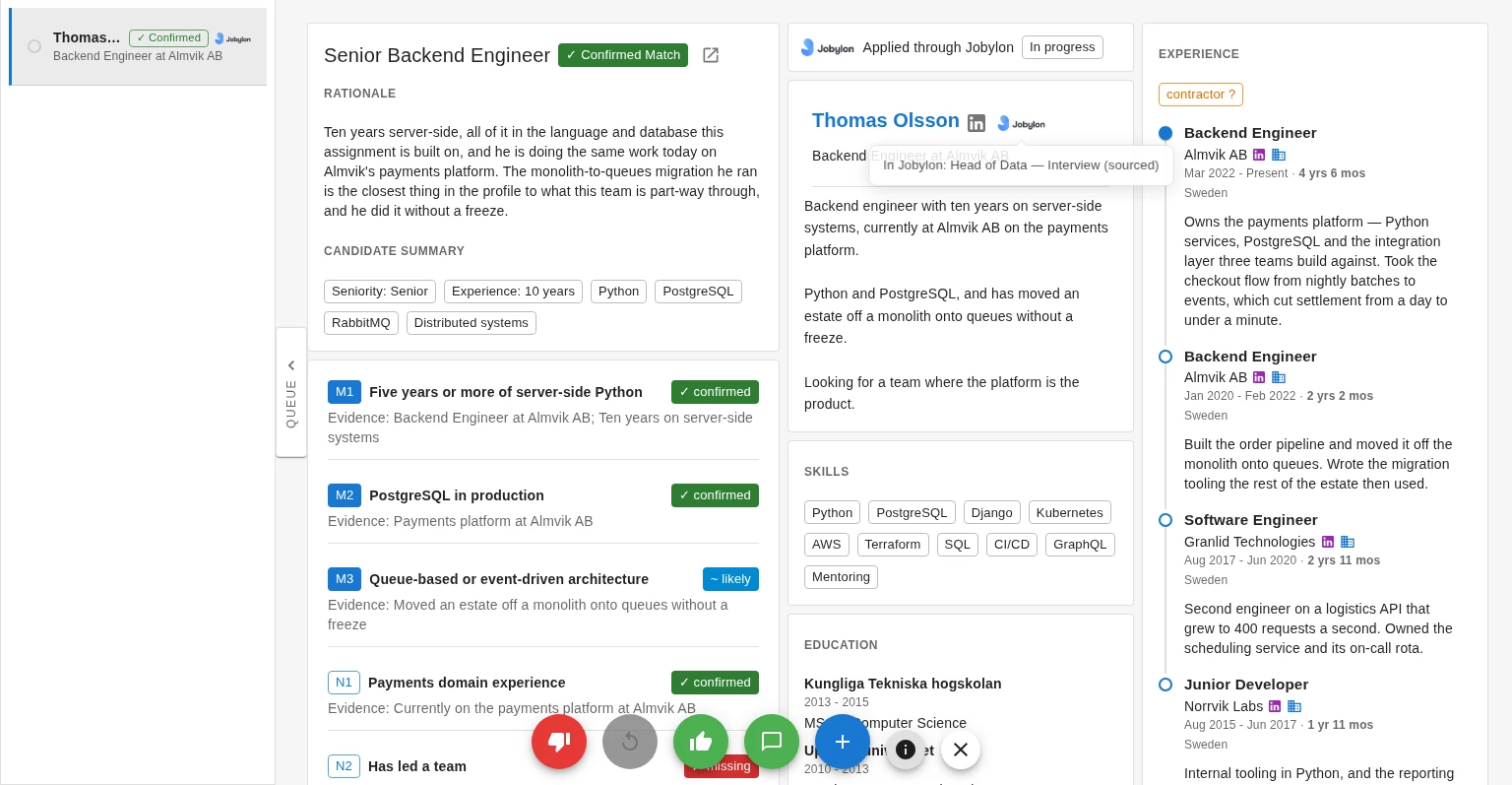
Applicants show up at the top of the role's grading queue in Artemis, marked Applied through Jobylon with the stage they are in, a couple of minutes after they apply and already assessed against the role. Each requirement carries the evidence Artemis found for it in the CV.
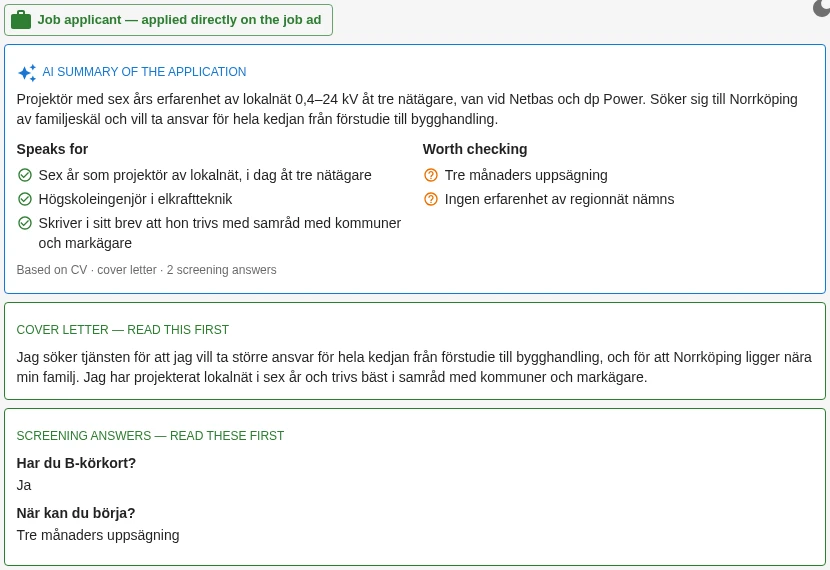
Artemis also sums up the application, with what speaks for the applicant, what is worth checking, and their cover letter and screening answers.
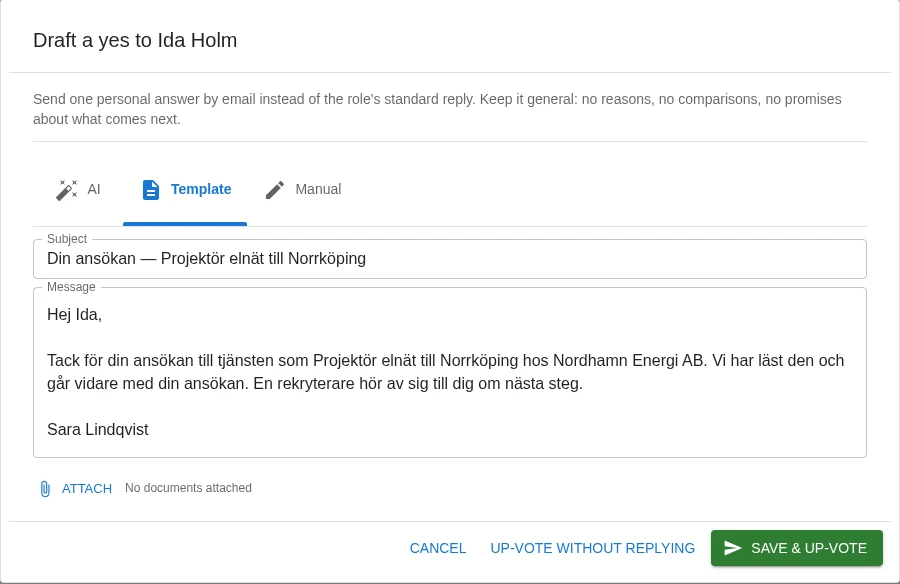
Give a thumbs up or a thumbs down and Artemis opens a yes or a no to the applicant, written from the role's template, for you to send or adjust. Choose Up-vote without replying or Down-vote without replying to grade without sending anything.
Jobylon follows
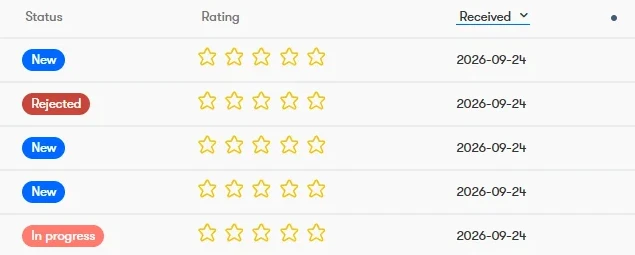
Your grade moves the applicant on your Jobylon board to the stage you chose for it in the settings, so nobody makes the same decision again in Jobylon. This is for people who applied themselves; candidates you add from Artemis keep the stage you pick for them.
Add a candidate to Jobylon
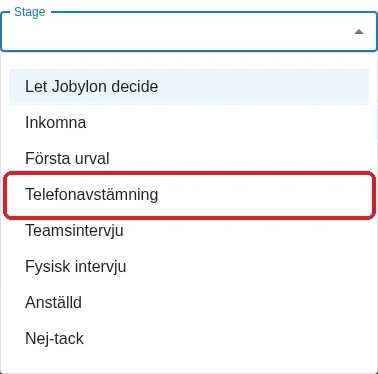
On a candidate's profile in Artemis, open the Roles tab and choose Add to Board, then pick a role that runs in Jobylon. In Add to Jobylon, choose the stage they start in, or Let Jobylon decide. The person lands on your Jobylon board as a sourced candidate.
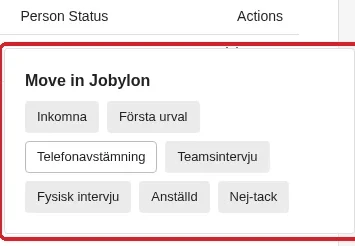
Afterwards the Roles tab shows the candidate's Jobylon stage. Click it and choose Move in Jobylon to move them to another stage without leaving Artemis.
Close a role
When the job is filled, click Archive in the job's toolbar in Jobylon.
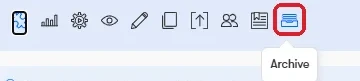
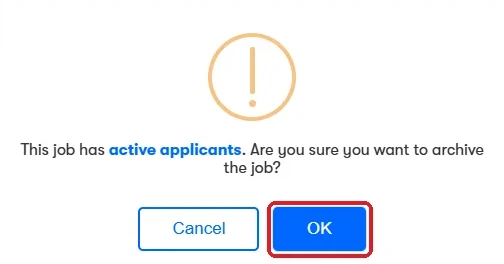
Confirm with OK. The ad comes down, and within seconds the role in Artemis is marked Closing.
Good to know
- Artemis checks your published jobs every 15 minutes, and again when you open the list of Jobylon jobs.
- Only applications made after you connected are brought in.
- Your team can still move an applicant in Jobylon. The change reaches Artemis within about a minute. If it happens before anyone grades that person, they leave the grading queue in Artemis, and if they have already moved further than the stage your grade points to, Artemis leaves them there.
- If Artemis already sent the no, tick Rejection communicated when Jobylon asks, so nobody sends a second one. If your team ticks it in Jobylon before grading, Artemis sends no answer of its own.
- On a job without the pipeline action from step 2, applicants still reach Artemis, without their CV, cover letter or answers. Artemis then shows a banner naming the job, so you know where to add it.
- To pause the integration, switch it off on the same Jobylon card under Settings, Integrations in Artemis. Your settings and roles stay, so switching it back on needs nothing re-entered.
Need help?
Write to sales@artemisrec.com and we will help you get connected.