
What it does
- Published jobs in Teamtailor become roles in Artemis.
- New applicants arrive in Artemis together with their CV and the answers they gave on the job's application form, and Artemis grades them against the role.
- A thumbs up in Artemis moves the application to the stage you chose in Teamtailor. A thumbs down rejects it in Teamtailor, or leaves it where it is if you prefer.
- Candidates Artemis finds for you can be added to a Teamtailor job as sourced candidates, with their CV and LinkedIn profile.
Connect Teamtailor to Artemis
1. Create an API key in Teamtailor
In Teamtailor, go to Settings, then Integrations, then API keys, and create a new key. Give it the Admin scope with read and write access. Copy the key.
Artemis needs the Admin scope to read your job applications and to update them. A career site key cannot read applications, so Artemis turns it away when you save it.
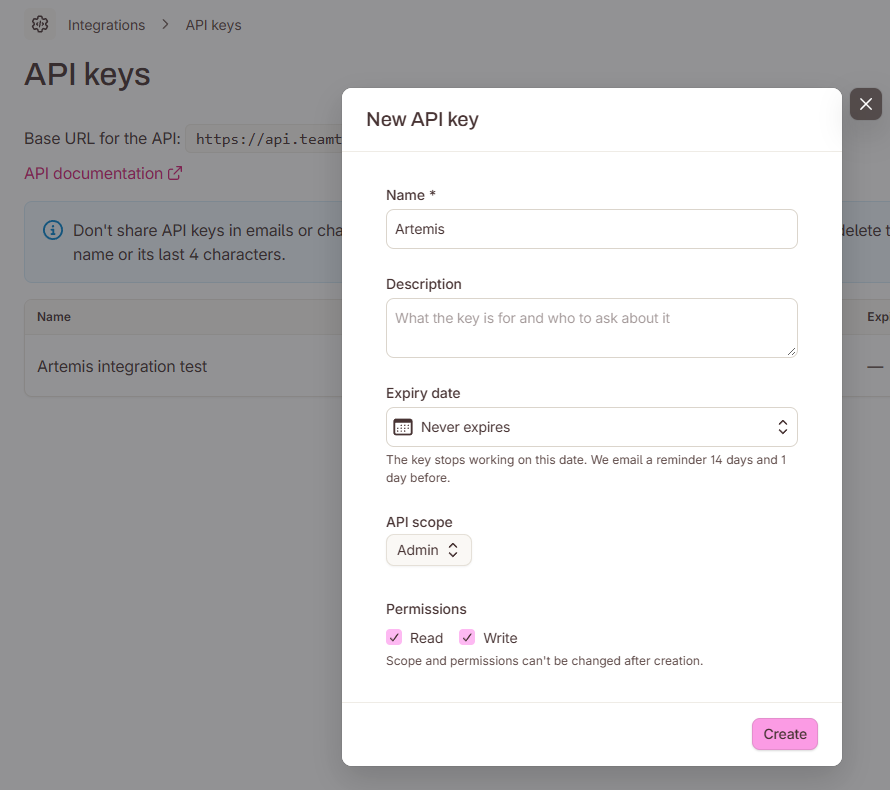
2. Paste the key in Artemis
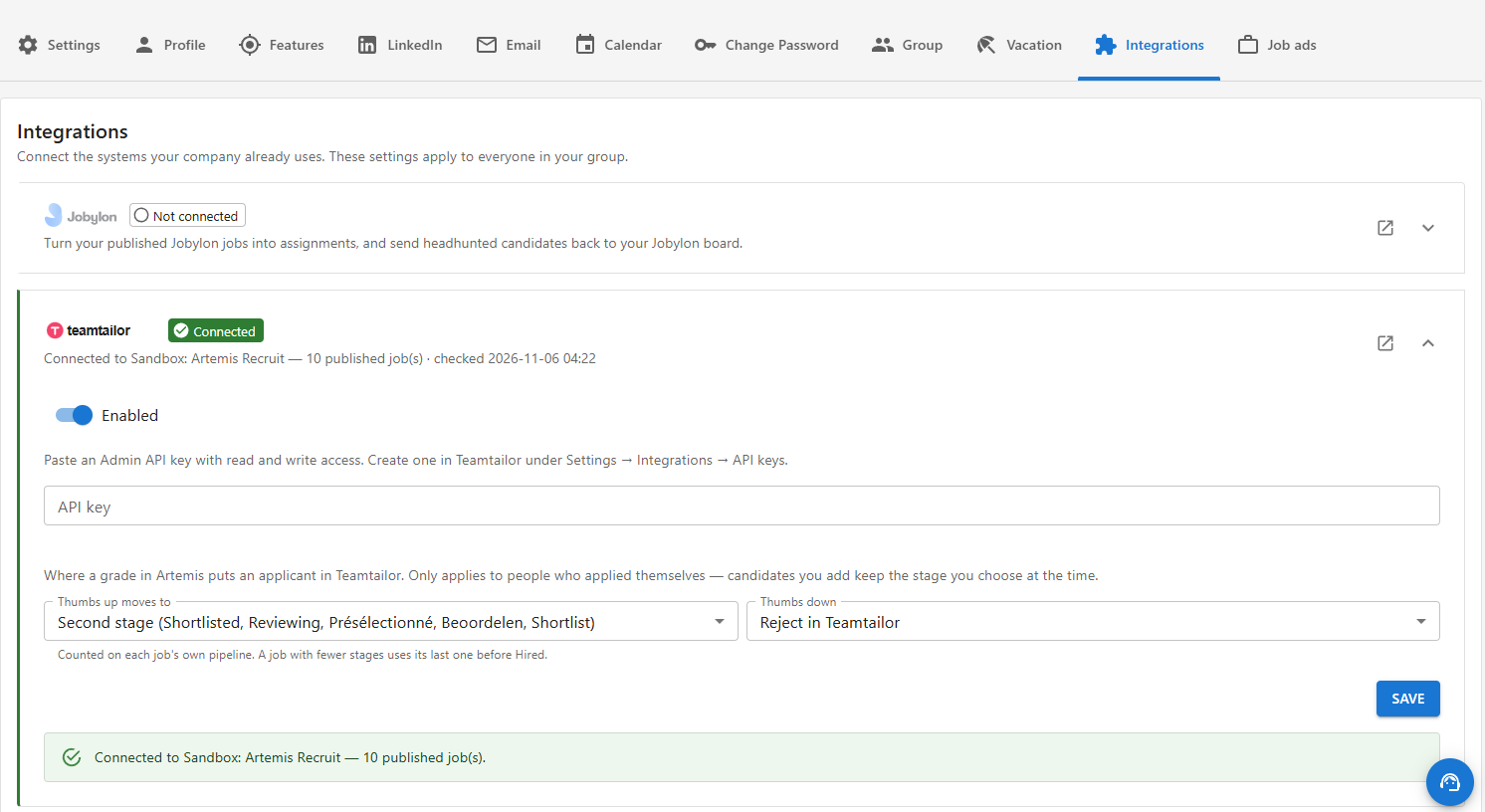
In Artemis, go to Settings, then Integrations, and open the Teamtailor card. Paste the key and press Connect. The card shows the name of your company in Teamtailor and how many published jobs Artemis found.
Then choose where a grade puts an applicant in Teamtailor, and press Save:
- Thumbs up moves to: a place in the pipeline, such as the second stage. Every Teamtailor job has its own pipeline, often with its own stage names, so you pick the place and the list shows what your jobs call it. A job with fewer stages uses its last stage before Hired. You can also choose Don't move.
- Thumbs down: Reject in Teamtailor, or Don't move.
Use it
Import a job as a role
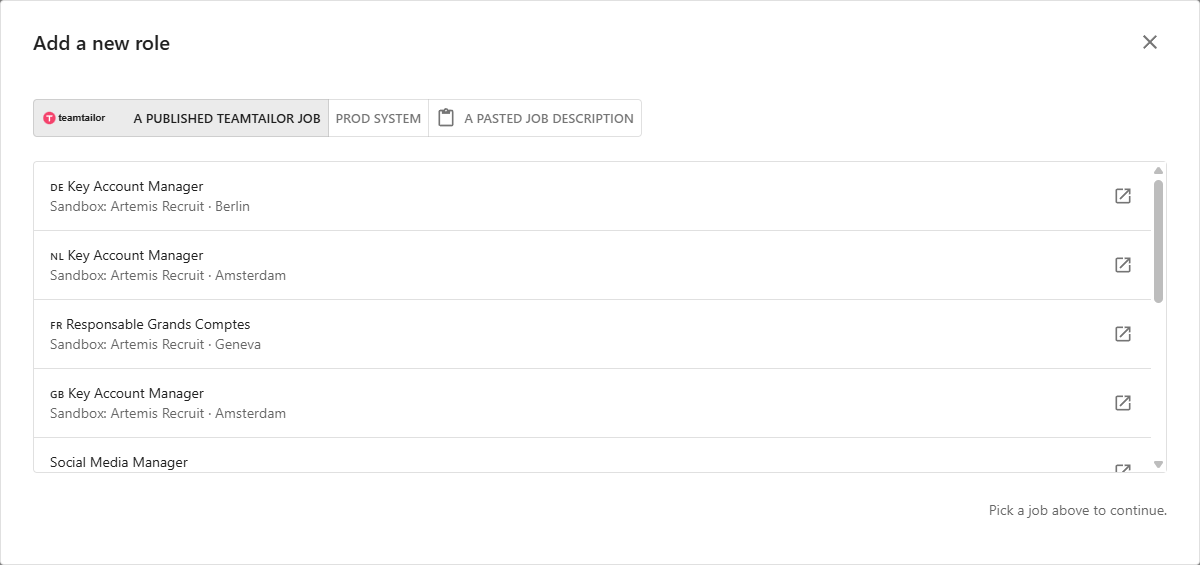
Publish the job in Teamtailor as usual. In Artemis, add a new role and pick A published Teamtailor job. The title, locations and ad text come from Teamtailor. The role carries a Teamtailor mark that opens the job in Teamtailor.
Grade applicants
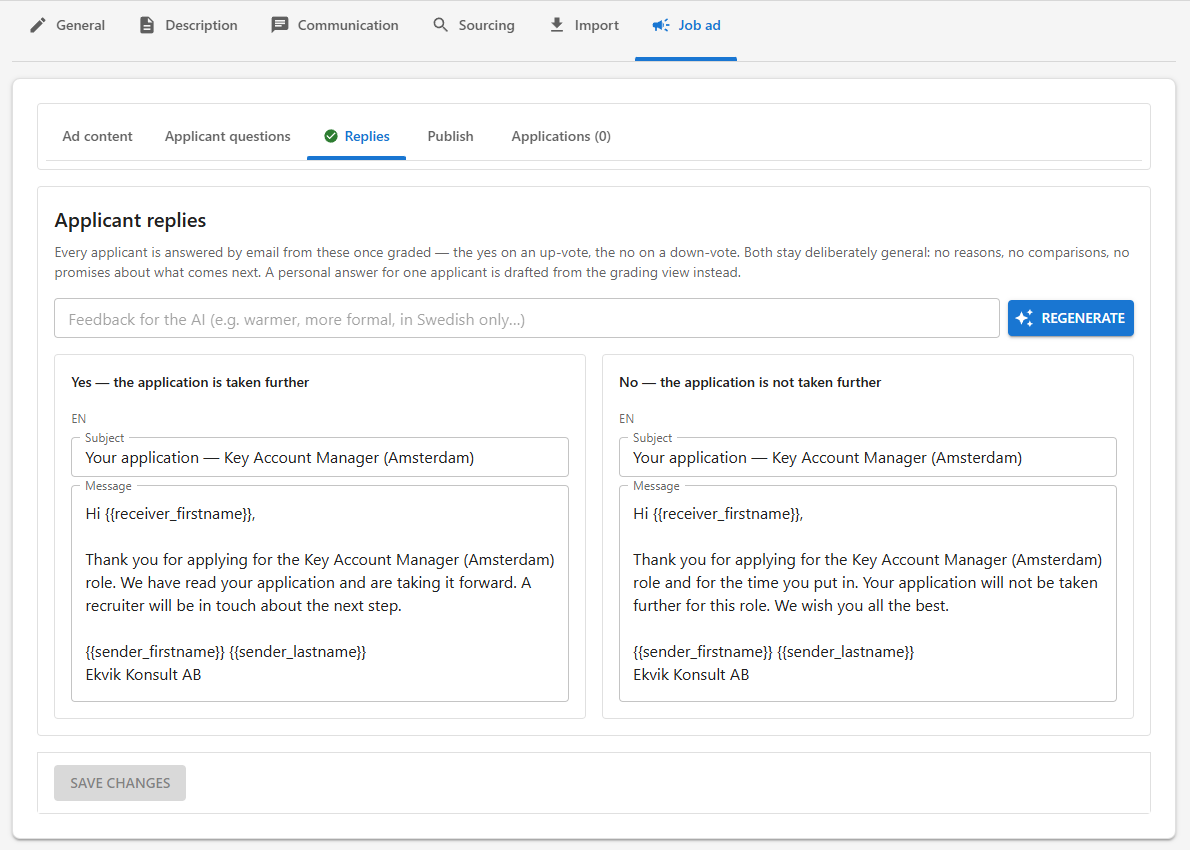
A role needs a yes reply and a no reply for its applicants, or nobody is queued for grading. Artemis writes both while you add the role. Read or change them later on the role's Job ad tab, under Replies.
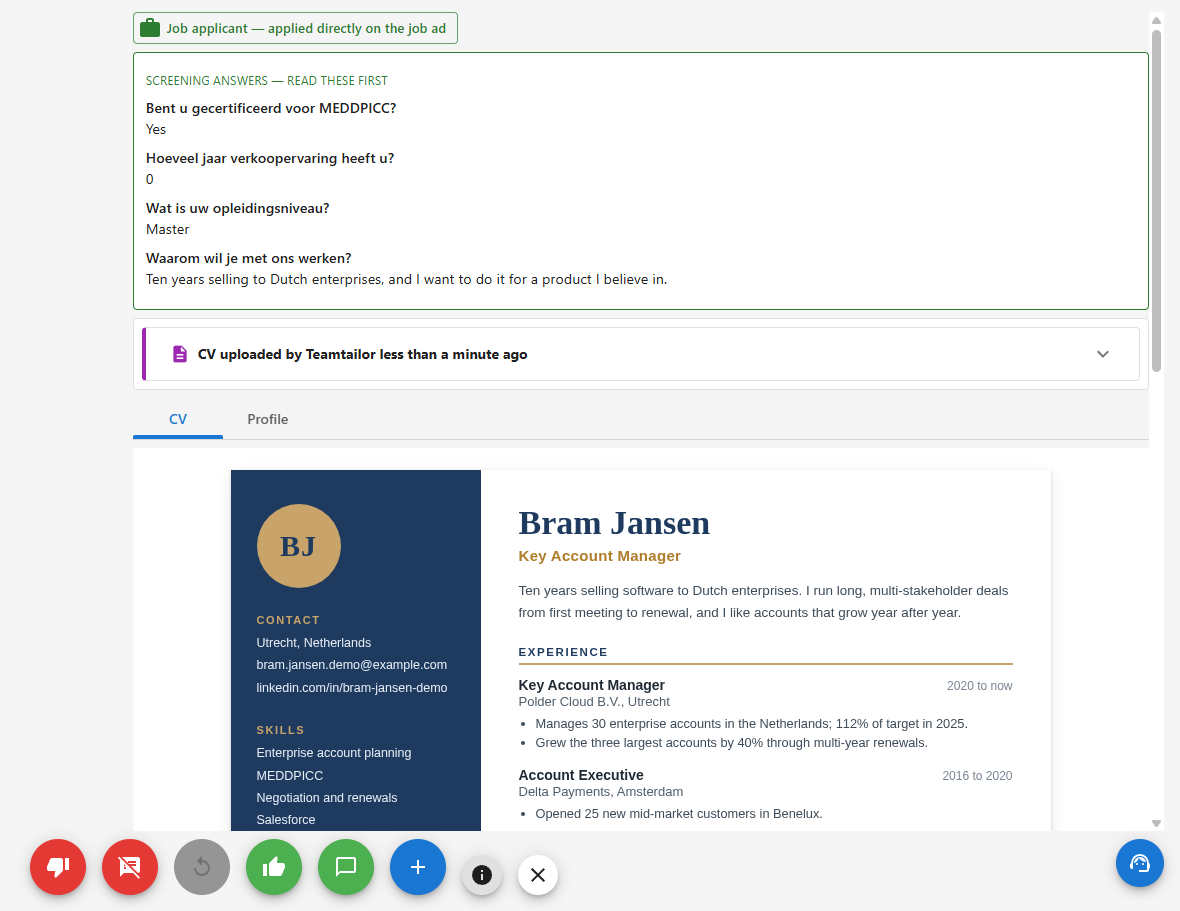
People who apply to the job in Teamtailor show up first in the role's grading queue in Artemis, with their CV. What they answered on the application form is shown at the top, above the CV, so you can read it first.
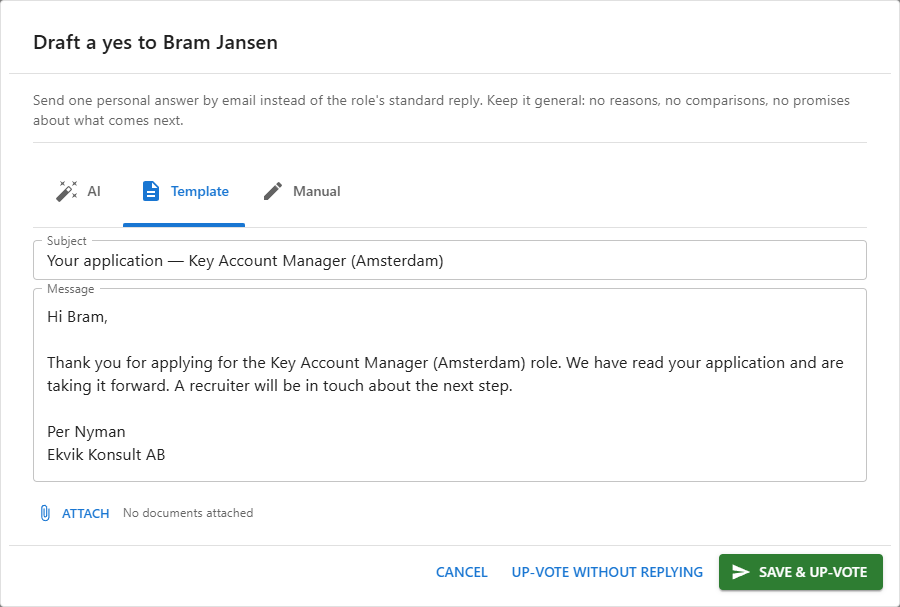
A thumbs up or a thumbs down first opens the reply to the applicant, with the role's yes or no already written out for them. Read it, change it if you like, and press Save & up-vote or Save & down-vote to send it by email to the address they applied with. Up-vote without replying or Down-vote without replying grades them and sends nothing. Either way, Artemis updates the application in Teamtailor for you.
A grade moves applicants who are still in the job's Inbox, or in the stage your thumbs up moves to. Someone a recruiter has already moved further along in Teamtailor stays where they put them. If you reject or move someone in Teamtailor yourself, they leave the grading queue in Artemis.
Add a candidate to Teamtailor
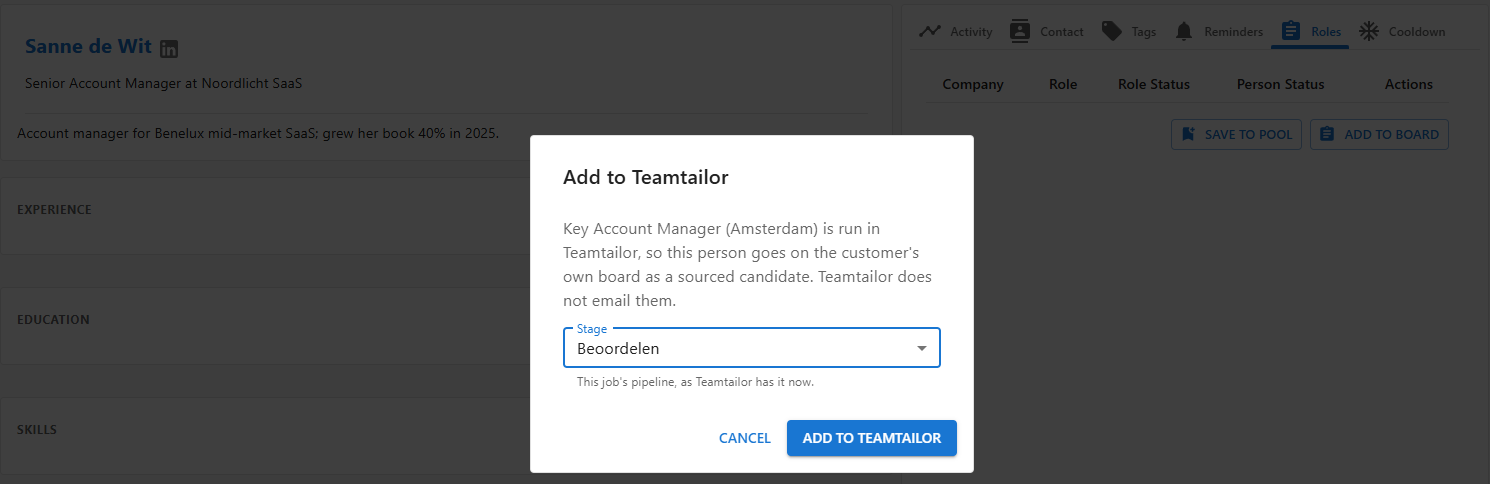
On a candidate's profile in Artemis, choose Add to Board, pick a role that runs in Teamtailor, then Add to Teamtailor. Pick a stage from the job's pipeline, or choose Let Teamtailor decide. The person is added to the job as a sourced candidate with their CV and LinkedIn profile, and Teamtailor does not email them.
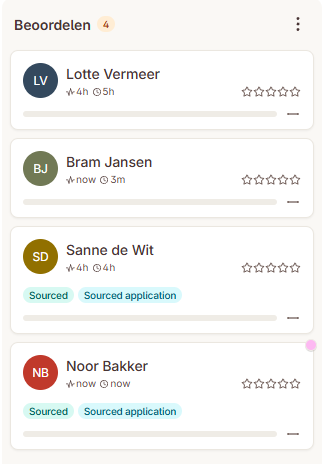
In Teamtailor, the people you add show up as sourced, in the stage you picked.
Artemis also adds a note on the candidate in Teamtailor with what their profile states: headline, current role and employer, their own summary and languages. The note is copied from the profile, and a profile with none of these gets no note. Teamtailor shows it as a comment from the first admin user on your Teamtailor account.
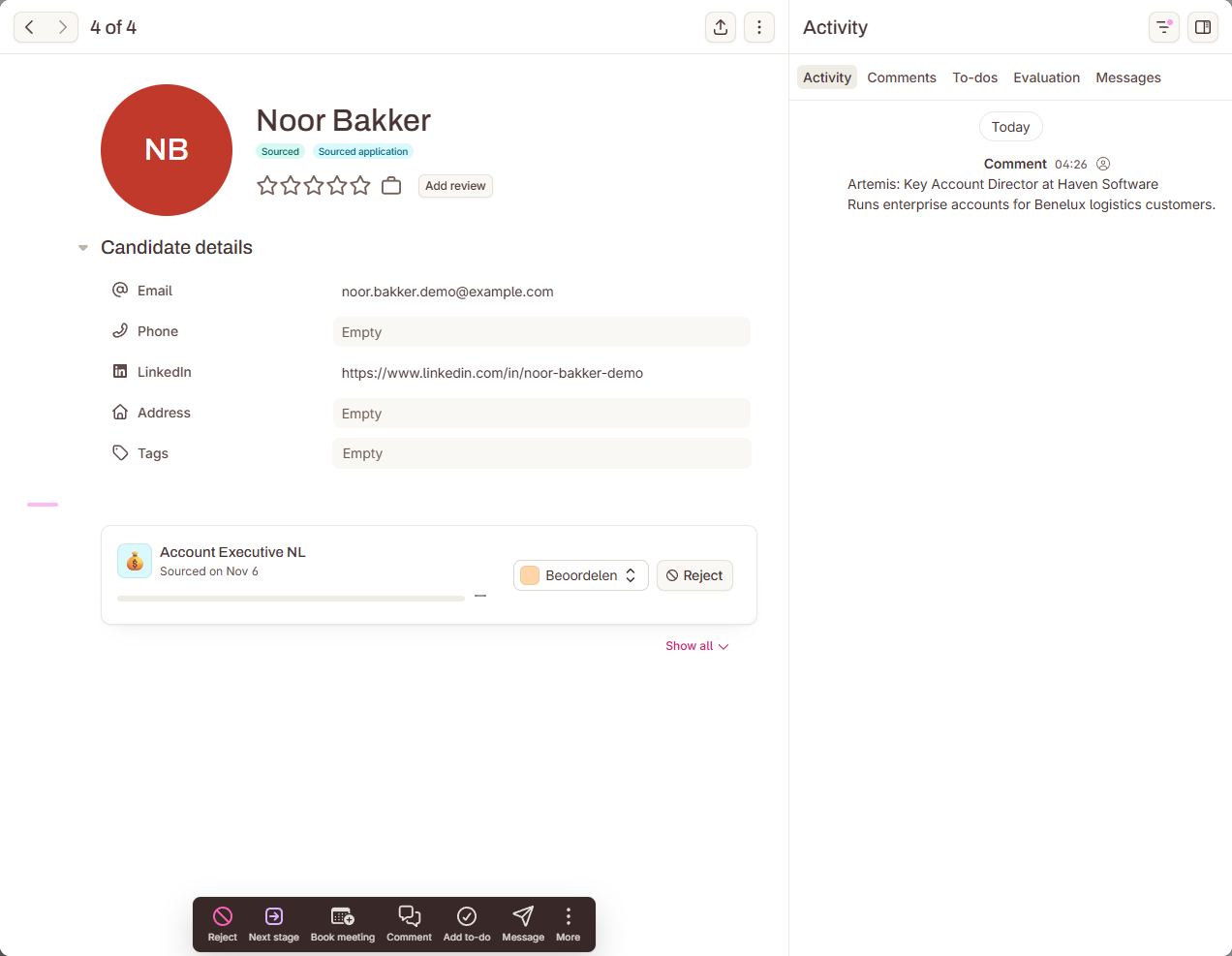
Later, open the candidate's Roles tab in Artemis, click the Teamtailor stage and pick another to move them. Picking Rejected rejects them in Teamtailor.
Close the role
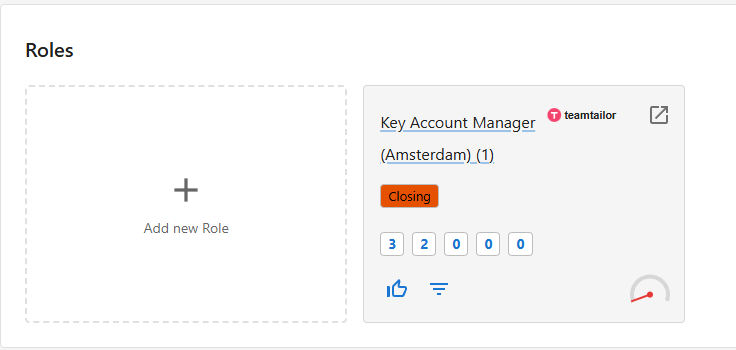
Archive or unpublish the job in Teamtailor. The next time Artemis checks, it marks the role as closing, and you decide in Artemis whether it was won or lost.
Good to know
- Artemis checks Teamtailor for new and changed applications every 5 minutes. Refresh in the job picker checks right away.
- Artemis reads applications that are new or changed since you connected. Everyone who applied earlier stays in Teamtailor.
- Text, yes or no, choice, range, number and date answers come across from the application form. A video answer is saved as a file on the applicant in Artemis. File uploads from the form stay in Teamtailor.
- Keys from Teamtailor's EU and North America regions both work. Artemis finds the region.
- The key is stored encrypted and never shown again. The card only shows its last four characters. Paste a new key to replace it.
- The switch at the top of the Teamtailor card turns the integration off and on again. Your key and your choices are kept, so nothing needs to be entered again.
Need help?
Write to sales@artemisrec.com and we will help you get connected.